
· 3 min read
Testing your Teams chatbot with DemoType
We’ve been diving deep into creating a Teams Chatbot integration with PeopleSoft, exploring various scenarios with Copilot Studio and even building a full custom implementation using the Bot Framework and Composer. Eventually, you get to the point where you need to test your chatbot. While the Bot Framework Emulator is great standard tool, we had specific integration scenarios with Teams that required manual testing. However, debugging conversation flows manually can be labor-intensive.
To streamline this process, we came up with a somewhat efficient method. Inspired by ZoomIt’s Demo mode, we decided to script a few conversation flows and use these scripts to test the chatbot. This approach allowed us to quickly verify whether the chatbot responded correctly. The process is simple: write out the messages to be sent to the bot, save them, and then send them for testing using ZoomIt DemoType.
DemoType in ZoomIt
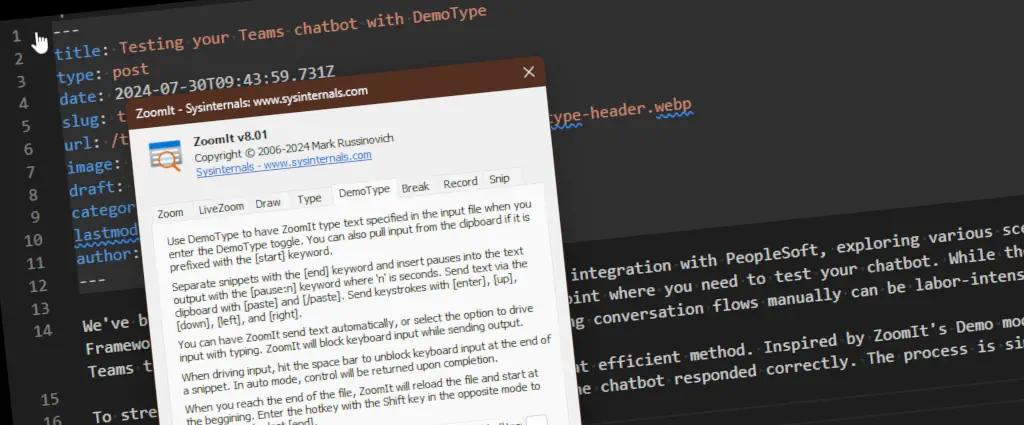
DemoType is a ZoomIt feature that allows you to execute keystrokes from script. You write out the script, and DemoType begins injecting keystrokes to the target window upon pressing a set of keystrokes. No user input is required. ZoomIt will simply run to the end of your script and then returning control to the user.
There are several commands available:
- [end] is a delimiter to segment your script into snippets
- [enter], [up], [down], [left], [right] synthesizes keystrokes
- [pause:n] synthesizes a pause of n seconds
- [paste] with a closing [/paste] allows you to inject a chunk of text via the clipboard
You can read more about ZoomIt in the official announcement or download it right away.
ZoomIt DemoType in action
With those commands we had all that we needed to write a short script, we used the [pause:2] to let the system pick up intents and process responses.
I want to expense some travel costs [enter] [pause:2]
They are related to work travel [enter] [pause:3]
No [enter] [pause:2]
07/20/2024 [enter] [pause:2]
3341BP[enter] [pause:2]
2971BP[enter] [pause:5]
No [enter] [pause:1]
Please submit them [enter]
[end]
As you can see, writing out the script is easy. You most likely already understand your conversation flow, you just add a new line for each user input, and include the [enter] commands to simulate the user submitting something to Teams. With this script, we can now test the chatbot in a repeatable manner. Additionally, you can add [end] anywhere in the script if you want to jump to a specific part of your conversation for debugging.
After writing out the same five messages over twenty times to test specific code changes in the chatbot, we were happy to have found a low-level way to automate this process. It saved us a lot of time and allowed us to focus on the actual development of the chatbot.
Albert-Jan Schot
CTO, Microsoft MVP & FastTrack Recognized Solution Architect
I am Albert-Jan Schot, CTO at Blis Digital, Microsoft MVP, and FastTrack Recognized Solution Architect focused on Microsoft 365, Azure, and AI agents. I help teams turn complex Microsoft Cloud challenges into practical architecture decisions and shipped outcomes.
Zuid Holland, Netherlands